
Stuck in traffic, waiting for a meeting, or just want to trade from the couch? You've probably wondered if your iPad can handle real trading work, not just checking charts.

James Mitchell
محلل تداول أول
☕ 9 دقائق قراءة
ما ستتعلمه:
- 1First Impressions & Getting Started
- 2Key Features: What Actually Works Well
- 3The Limitations & Gotchas You Must Know
- 4iPad vs. Desktop vs. iPhone: The Real Comparison
- 5Optimizing Your iPad Trading Setup
- 6Pro Tips & Hidden Tricks
- 7When to Use It (And When to Avoid It Completely)
- 8Final Verdict: Is the MT5 iPad App Worth It?

Stuck in traffic, waiting for a meeting, or just want to trade from the couch? You've probably wondered if your iPad can handle real trading work, not just checking charts. I've traded on every device under the sun, and the MetaTrader 5 iPad app is a genuine contender. It's not just a blown-up phone app, but it's also not a full desktop replacement. Let's break down exactly what you can and can't do, where it shines, and where you should still reach for your laptop.
Downloading MT5 from the App Store is the easy part. The first thing you'll notice is the interface. It's clean, intuitive, and feels native to iPadOS. It uses the screen real estate much better than the iPhone version, with a proper chart window and a separate panel for your account/trades. Logging in is straightforward: you need your broker's server name, login, and password. A word of caution here: if your broker isn't on the default list, typing in the server name can be finicky. Double-check for typos.
Once you're in, take five minutes to customize the toolbar. You can pin your most-used actions (like new order, close all, or chart timeframe) for one-tap access. This is a game-saver when you need to act fast. I made the mistake of not doing this initially and was fumbling through menus while a scalp setup evaporated. Don't be like me.

Warning: The iPad app does not support adding custom indicators or Expert Advisors (EAs) directly. You can't just drag an .ex5 file into a folder like on desktop. If your strategy relies on a specific custom indicator, the iPad app alone won't cut it.

For core trading functions, the MetaTrader 5 iPad app is surprisingly capable.
Charting & Analysis: You get all 38 built-in indicators (like RSI and MACD) and 44 analytical objects. Drawing trendlines, Fibonacci retracements, and channels is smooth with the Apple Pencil (or your finger). You can have multiple charts open in tabs, which is perfect for monitoring a few key pairs. The pinch-to-zoom and swipe-to-scroll on charts is, frankly, better than using a mouse. It feels natural.
Order Management: This is where it gets serious. Placing market and pending orders is fast. You can set stop-loss (SL) and take-profit (TP) levels right from the order ticket. Modifying open orders (moving stops, adding a trailing stop) is a simple tap and drag on the chart. I've successfully managed multi-leg scalping trades on EUR/USD right from my iPad, adjusting TP levels as price moved.
The Depth of Market (DOM): This is a hidden gem on the iPad version. It's visually clear and gives you a great sense of liquidity. For a quick market read, it's incredibly useful.

Pro Tip: Use the Split View feature in iPadOS. You can have MT5 open alongside your broker's website for news, or a notes app for your trading journal. It turns the iPad into a compact, efficient trading station.

💡 نصيحة وينستون
The iPad is a monitor, not a strategist. Build your system on desktop, deploy it with the iPad. Trying to do both on the tablet is like building a ship in a bottle.

“I got cocky once trading XAU/USD on iPad and sized a position too large because I wasn't double-checking my math. It was an expensive reminder.”
Alright, time for the cold water. The MetaTrader 5 iPad app has some glaring omissions that can be deal-breakers.
No Custom Indicators/EAs: I mentioned it before, but it's the biggest one. Your fancy volatility indicator or automated swing trading robot? Useless here. The app only runs what's pre-installed.
Limited Timeframe Selection: You can't right-click to get the 2-minute or 3-hour charts. You're stuck with the standard set: M1, M5, M15, M30, H1, H4, D1, W1, MN. For most strategies, this is fine, but if you trade off a specific non-standard TF, you're out of luck.
One-Click Trading Nuance: While you can enable one-click trading, it's not as seamless as on desktop. There's often a slight lag or an extra confirmation tap that can make a difference in fast markets. I learned this the hard way trying to jump into a breakout on XAU/USD; by the time the order confirmed, I was chasing it by a few pips.
No Advanced Order Types: Forget about advanced bracket orders with multiple TPs or automated breakeven triggers. You're manually managing every aspect beyond a basic SL/TP. This makes complex trade management a chore.
Data & Sync: If your iPad goes to sleep, the charts sometimes pause. You need to manually refresh. Also, while your trade history and account balance sync with the server, chart templates and drawings do not sync with your desktop version. You have two separate setups.

Let's put them side-by-side. This isn't about which is "best," but which is right for the task.
| Feature | MT5 Desktop (Windows/Mac) | MT5 iPad | MT5 iPhone |
|---|---|---|---|
| Full Customization | Yes. EAs, custom indicators, scripts. | No. | No. |
| Chart Flexibility | Unlimited charts, any timeframe. | Multiple tabs, standard TFs only. | Single chart at a time. |
| Trade Management | Full advanced order types. | Basic SL/TP, trailing stop. | Very basic, emergency use only. |
| Best For | Strategy development, heavy analysis, automated trading. | Monitoring & managing open positions, analysis on the go. | Checking P&L, placing emergency orders. |
| Experience | Power workstation. | Competent trading tablet. | Pocket-sized viewer. |
The iPad sits squarely in the middle. It's for the active trader who has set up their primary system on desktop but needs a strong tool for when they're away. The iPhone app is basically for 'oh crap' moments - like closing a trade if you get a margin call alert while out. The iPad, however, lets you legitimately analyze and execute. I once managed a full day of swing trading adjustments from an airport lounge using just my iPad and a hotspot, and it was stress-free.
💡 نصيحة وينستون
That slight lag on one-click trading? It's not a bug, it's a feature. It's the universe giving you one last chance to check your position size before you do something stupid.

“The Apple Pencil isn't a luxury for MT5 on iPad; it's what turns imprecise finger-drawing into professional technical analysis.”
To get the most out of the MetaTrader 5 iPad app, you need to think about your hardware and workflow.
Hardware: The Apple Pencil (2nd Gen) is a must-have. Drawing levels and channels is precise and fast. Consider a keyboard folio too. While you can't type in commands like on desktop, a keyboard is great for quickly typing in order sizes or note-taking in Split View. I use the 12.9-inch iPad Pro. The extra screen space is worth every penny for trading; the 11-inch model feels cramped with multiple apps open.
Workflow Integration: Your iPad shouldn't be an island. Use it as the mobile extension of your desktop setup. Do your deep analysis and set primary orders on your desktop at IC Markets or Pepperstone. Then, use the iPad to monitor those trades, move stops to breakeven, or take partial profits. I have my main chart template (simple S/R levels, a moving average) saved separately on the iPad so I have a consistent, clean view.
Risk Management: This is crucial. The ease of trading can lead to impulsive decisions. Always use your position size calculator on another device first, or have your standard lot sizes memorized. The smaller screen can distort your perception of risk. I got cocky once trading XAU/USD on iPad and sized a position too large because I wasn't double-checking my math against my risk rules. It was an expensive reminder.

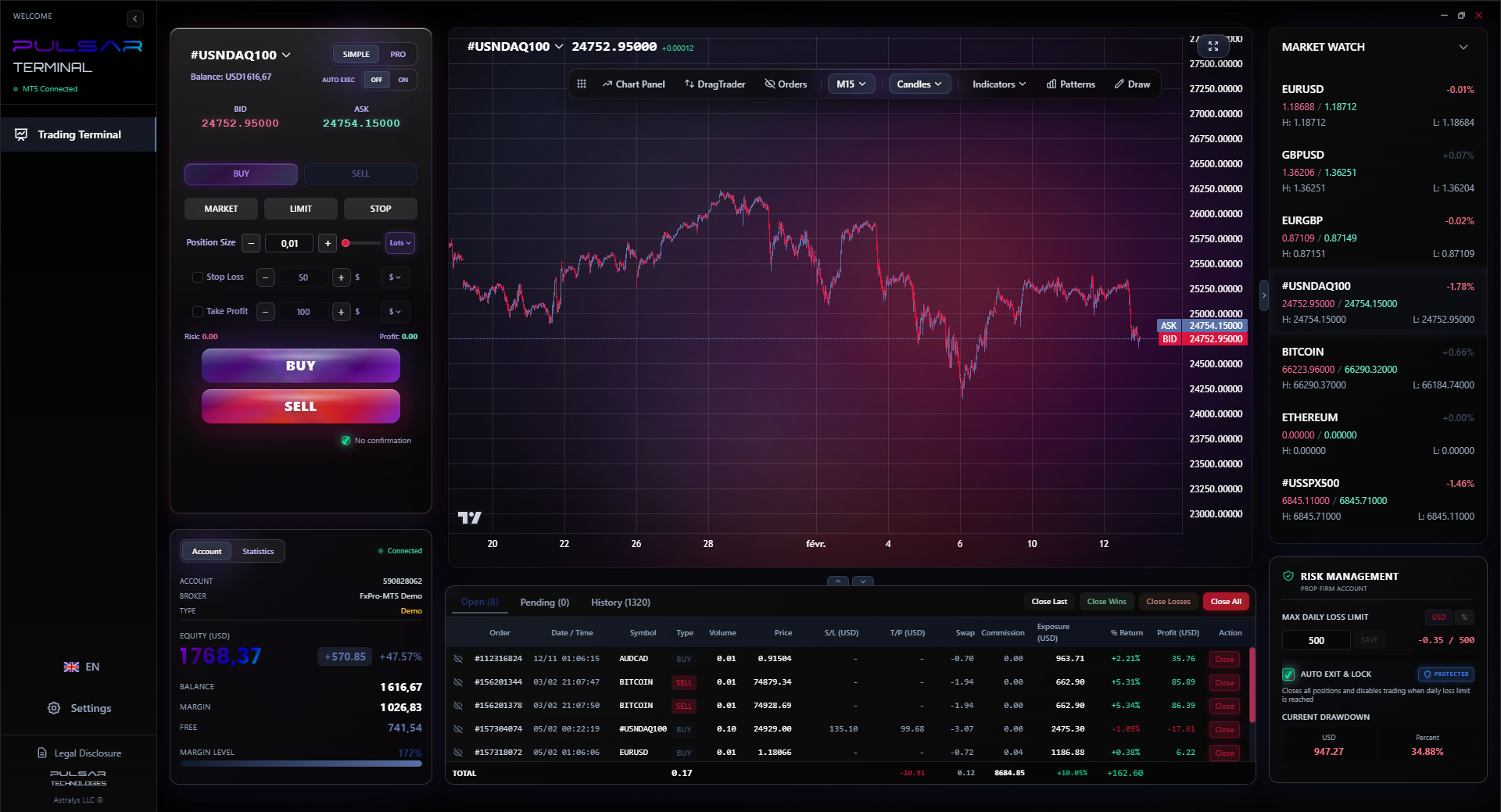
Managing complex trades with multiple take-profit levels is a desktop task, but tools like Pulsar Terminal that automate bracket orders and partial closures would make monitoring those trades on iPad infinitely simpler.
Pulsar Terminal
أداة MT5 الشاملة: أوامر سحب وإفلات، متعدد TP/SL، تريلينج ستوب، تداول الشبكة، Volume Profile وحماية البروب فيرم. يستخدمها أكثر من 1000 متداول يومياً.
Here are a few things I've learned over hundreds of hours on the MT5 iPad app.
Quick Chart Navigation
Long-press on the timeframe toolbar at the bottom. It brings up a list of all timeframes for a one-tap switch, faster than scrolling. Also, a two-finger double-tap on the chart resets the zoom to the default view.
Managing Multiple Orders
You can view all your pending orders and open positions in the 'Trade' tab. Tapping on any order brings up a modification window. To close multiple positions at once, you have to swipe each individually - there's no 'close all' for specific symbols, which is annoying.
Notifications Are Your Friend
Enable push notifications for order events (fills, modifications). This is more reliable than hoping you'll see the tiny text update on screen. It saved me from a slippage disaster once when a stop order was filled at a worse price than I'd seen on the chart.
The Secret Refresh
If charts seem frozen or data is lagging, don't just close the app. Go to the settings (the little gear icon) and there's a 'Refresh' option for rates. This often fixes data hiccups without needing a full restart.

Example: Let's say you're watching EUR/USD on H1. Price is approaching a key level you drew. With Apple Pencil, you can quickly adjust that level as new information comes in, then tap and drag a pending sell order right onto the chart. It's a fluid, connected process that a mouse can't quite match.
💡 نصيحة وينستون
If you find yourself drawing more than three lines on an iPad chart, you're no longer analyzing. You're doodling. Clarity travels better than complexity.
“Use the iPad for monitoring and managing, the desktop for building and creating. Confuse the two, and you'll pay for it.”
Be strategic about when you fire up the MetaTrader 5 iPad app.
Use it for:
- Monitoring & Managing: This is its superpower. You've done your analysis, trades are open. The iPad is perfect for babysitting them, moving stops, taking profits.
- Quick Idea Generation: Seeing charts on a different, more tactile screen can sometimes spark a new idea or perspective on a setup.
- Discretionary Entry/Exit: If you see a clear, simple setup based on support/resistance or a major news spike, you can absolutely take the trade confidently.
Avoid it for:
- Strategy Development or Testing: Impossible. Don't even try.
- High-Frequency or Complex Scalping: The slight interface lag and lack of ultra-fast custom hotkeys put you at a disadvantage.
- Major News Events (NFP, CPI): The data flow can choke, and order execution might be slower than on a wired desktop connection. I avoid trading these events on iPad entirely.
- Initial Trade Setup for Complex Strategies: If your trade involves setting a grid of orders or a multi-TP bracket, do it on desktop first with a tool that can automate it, then monitor on iPad.
Absolutely, but with a clear understanding of its role. The MetaTrader 5 iPad app is the best mobile trading platform available for retail traders, period. It turns your iPad into a powerful trading satellite.
It won't replace your desktop, and it's not meant to. What it does is give you genuine freedom. Freedom from your desk without abandoning your trades or your analysis. For the trader who wants to maintain an edge while having a life outside of four walls, it's indispensable. Just remember its limits: it's a brilliant executor and manager, not a creator. Set up your game plan on the big machine, then play the game from anywhere with your iPad.
My final piece of advice? Don't trade solely on it. Use it as part of an environment. Your desktop is your command center. Your iPad is your field tablet. Used together, they make you a more adaptable and effective trader. Now, go enjoy that coffee on the patio while you check your charts.
FAQ
Q1Can I install custom indicators or Expert Advisors on MT5 for iPad?
No, you cannot. This is the most significant limitation. The iPad app only supports the 38 built-in technical indicators and 44 analytical objects. Any custom .ex5 or .mq5 files cannot be added. You need the desktop version for that.
Q2Does the MT5 iPad app support one-click trading?
Yes, but with a caveat. You can enable it in settings, but the implementation often involves a slight delay or an extra tap for confirmation compared to a strong desktop setup. It's usable for most situations but may not be ideal for ultra-fast scalping.
Q3Do my chart templates and drawings sync between my desktop and iPad?
No, they do not. Your account balance, trade history, and open orders sync via the broker's server. However, chart templates, saved indicators, and drawn objects (trendlines, etc.) are stored locally on each device. You have to set them up separately.
Q4Is the Apple Pencil necessary for trading on MT5 iPad?
It's not strictly necessary, but it is a massive upgrade. Drawing precise trendlines, Fibonacci levels, and channels with your finger is imprecise. The Apple Pencil makes technical analysis on the iPad feel professional and fast. I consider it essential for serious use.
Q5Can I use the iPad app to pass a prop firm challenge?
I would strongly advise against relying solely on the iPad app for a prop firm challenge. The lack of custom tools and potential for minor lag during critical moments adds unnecessary risk. Use your desktop for the challenge execution. However, the iPad is excellent for monitoring a challenge account once it's running, especially for managing the strict daily loss limits some firms have.
Q6Which iPad model is best for trading with MT5?
Screen size is king. The 12.9-inch iPad Pro provides the most comfortable, desktop-like charting experience, especially in Split View. The 11-inch models work but feel more cramped. Any recent model with an A-series or M-series chip will have more than enough power; the app isn't that demanding.
Q7How reliable are the push notifications for orders?
In my experience, they are very reliable - more so than trusting yourself to see on-screen alerts. Ensure notifications are enabled for MT5 in your iPad's Settings app. They are crucial for knowing when orders fill, especially if you step away from the app for a moment.
درس البروفيسور وينستون
النقاط الرئيسية:
- ✓iPad MT5 is for trade management, not strategy creation.
- ✓Always double-check position size on a mobile device.
- ✓Apple Pencil is a non-negotiable tool for analysis.
- ✓Push notifications are more reliable than your eyes.
- ✓Split View with a notes app is your mobile journal.
ما مدى فائدة هذا المقال؟
انقر على نجمة للتقييم
رؤى التداول الأسبوعية
تحليلات واستراتيجيات أسبوعية مجانية. بدون رسائل مزعجة.
عن المؤلف
James Mitchell
محلل تداول أول
يقيم في نيويورك ولديه أكثر من 9 سنوات من الخبرة في التداول. يركز على أزواج الدولار الرئيسية وتحديات شركات البروب وبيئة التنظيم الأمريكية.
التعليقات
تحذير من المخاطر
ينطوي تداول الأدوات المالية على مخاطر كبيرة وقد لا يكون مناسبًا لجميع المستثمرين. الأداء السابق لا يضمن النتائج المستقبلية. هذا المحتوى لأغراض تعليمية فقط ولا ينبغي اعتباره نصيحة استثمارية. قم دائمًا بإجراء بحثك الخاص قبل التداول.
قد يعجبك أيضًا

Cara Trading Forex Sukses: 7 Prinsip dari Trader Profesional
Cara trading forex sukses dengan 7 prinsip trader pro: manajemen modal, disiplin, journal trading, backtest. Data nyata, bukan janji profit palsu.
Jam Trading Forex Terbaik untuk Trader Indonesia: Panduan Lengkap dengan Tabel Waktu
Panduan jam trading forex untuk trader Indonesia. Tabel 4 sesi dunia, jam emas 20:00-00:00, sesi mana yang harus dihindari. Data akurat + tips dari trader berpengalaman.
Top 5 Sàn Forex Uy Tín Nhất 2026: Review Jujur dari Trader Indonesia
Top 5 sàn forex uy tín 2026 untuk trader Indonesia. Review jujur: spread, deposit, withdraw, dukungan lokal. Exness, XM, IC Markets & lebih.
احصل على Pulsar Terminal
جميع هذه الحاسبات مدمجة في Pulsar Terminal مع بيانات حية من حساب MT5 الخاص بك.
احصل على Pulsar Terminal