
I was on a train from New York to Boston, watching a perfect setup form on the EUR/USD 15-minute chart.

James Mitchell
Analista Trading Senior
☕ 11 min di lettura
Cosa imparerai:
- 1First Impressions & Getting Started: It's Not Just Another App
- 2A Walkthrough of the Core Features: What Actually Works
- 3Trading in the Wild: Two Real Trade Examples
- 4The Hidden Pitfalls & What They Cost You
- 5Optimizing Your MT5 iOS Workflow: My Current Setup
- 6Broker Performance & Why It Matters More on Mobile
- 7Final Verdict: When to Use It and When to Run Away

I was on a train from New York to Boston, watching a perfect setup form on the EUR/USD 15-minute chart. The price was coiling at a key daily level, my RSI indicator showed divergence, and volume was picking up. I went to place my 0.5 lot sell order with a 25-pip stop and a 50-pip target. My thumb fumbled. I hit 'Buy' instead of 'Sell.' By the time I canceled it, the price had moved 8 pips against my intended direction. I entered flustered, my stop was hit for a $125 loss, and the market then plummeted exactly as I'd predicted. That moment cost me real money and taught me that trading on MetaTrader 5 iOS isn't just about convenience, it's a different beast entirely.
Downloading MT5 from the App Store feels straightforward. You search, you tap, you wait. But the first launch is where the reality sets in. This isn't a simplified retail app. It's the full MetaTrader terminal, crammed onto a 6-inch screen. The initial dashboard is overwhelming - charts, quotes, a trade terminal, news, all fighting for space.
Setting up your first account is the real test. You need your broker's server name, login, and password. This is where many fail. I've seen traders copy the server name wrong (like using 'ICMarkets-Live' instead of 'ICMarketsSC-MT5') and spend an hour troubleshooting. My advice? Have your broker's support page open in Safari. Copy and paste the details directly. Don't type them.
Once logged in, the default chart is... sparse. You'll need to configure everything. I immediately head to the settings (the little gear icon) and change two things: I enable 'One-Click Trading' for faster execution (dangerous, but necessary), and I set the chart period to my preferred 15-minute timeframe. The app doesn't remember your desktop layouts, so you're starting from scratch.

Warning: The default setting for order confirmation is ON. For a while, I left it on for 'safety.' All it did was make me miss entries. When that confirmation pop-up appears, the price has already moved. I turned it off and accepted the risk. It's a personal choice, but for active styles like scalping, you can't have that delay.

Let's break down what you'll use daily, separating the useful from the frustrating.
The Charting Engine
It's surprisingly strong. You get nine timeframes, from one minute to one month. Pinch to zoom works intuitively. Adding indicators is easy - tap the 'f' icon, choose from a massive list. The MACD indicator renders perfectly. Drawing tools, however, are a pain. Trying to draw a precise trendline on a touchscreen is like performing surgery with oven mitts. I mostly stick to horizontal lines for support/resistance.
The Trade Terminal
This is your lifeline. It shows your open positions, pending orders, and account balance. Tapping on an open position brings up a modification window where you can change stop loss or take profit. It's functional, but it lacks the granular control of the desktop version. You can't easily set multiple take-profit levels on a single trade, for instance.
Order Placement
This is the moment of truth. You tap the 'New Order' button at the bottom. A ticket pops up. You set volume, stop loss, take profit. The critical part is the 'Type' field. 'Market Execution' is instant. 'Pending Order' lets you set Buy Limit/Stop, etc. I once accidentally left a Buy Limit order active overnight on XAU/USD. It triggered while I was asleep, and without a stop loss attached (a separate setting on pending orders), I woke up to a nasty surprise. Always double-check the 'Set SL/TP' box for pending orders.

Example: Placing a trade on USD/JPY. Price is at 149.50. I want to sell at 149.55 with a 20-pip stop and 40-pip target. I tap New Order > Type: Pending Order > Sell Limit. Price: 149.55. SL: 149.75. TP: 149.15. Volume: 0.1 lots. I MUST tap 'Set SL/TP' for those values to stick. Then I tap 'Place'. It seems simple, but missing one step can be costly.

💡 Consiglio di Winston
The 'Volume' field in the order ticket remembers your last used size. This is dangerous. Always double-check it before placing a new trade. I once accidentally traded 1.0 lot instead of 0.1 because of this.
“The phone is for protecting capital, not for hunting new profits.”
Theory is one thing. Let me show you how I've used the MT5 iOS app in real market conditions, wins and losses included.
Trade 1: The Impulse Scalp (Win) I was waiting for a dentist appointment. I pulled out my phone, opened MT5, and looked at the 5-minute chart for the S&P 500 mini (SPXm). Price had been in a tight range for an hour. A large green candle broke the high. This was an impulse move. I didn't have time for deep analysis. I tapped New Order, set a Buy Stop at 2 pips above the breakout candle's high, with a 5-point stop loss and a 10-point target. Volume: 2 micro lots (0.02). I placed the order. It triggered. I put my phone away. 15 minutes later, I checked. The take-profit was hit. A $20 gain. The lesson? The app is excellent for acting on simple, high-probability breakout setups where speed matters more than complex analysis.
Trade 2: The Botched Swing Trading Adjustment (Loss) I had a long-term short position on XAU/USD from $1980, with a stop at $1995. The price dropped to $1950, and I wanted to move my stop to breakeven ($1980). On desktop, I'd just drag the stop line on the chart. On iOS, you have to tap the trade in the terminal, tap 'Modify', then manually type in the new stop price. I was in a poor cellular zone. The app lagged. I typed '1980.00' but the price had moved to $1950.50. In my haste, I didn't notice the app had defaulted the field to the current market price. I accidentally modified the POSITION price, not the stop loss. I turned a winning trade into an instant $300 loss. The mobile app is terrible for precise trade management on existing positions.
Nobody talks about these until they've been burned. I've been burned so you don't have to be.
Screen Real Estate is a Killer: Trying to look at a chart, the order book, and your trade terminal at once is impossible. You're constantly switching tabs. This leads to tunnel vision. I missed a massive bearish engulfing candle on the NASDAQ once because I was focused on typing in a stop-loss value. You see the price, but not the context.
Notification Delays: Price alert notifications are not real-time. They can be delayed by 10-30 seconds. Relying on them for entry signals is a recipe for disaster. Use them as a nudge to check the chart, not as a trigger.
Data Connection Gremlins: The app handles disconnections poorly. If your Wi-Fi drops or you switch to cellular, the chart can freeze. The prices in the quote list might update, but your chart stays still. I've seen this create a false sense of security. You think the market is flat, but it's actually trending. Always check the 'Offline' status at the top of the screen.
The Psychological Shift: Trading on a phone feels casual. It's the same device you use for social media and texting. This can subconsciously reduce your discipline. I found myself taking smaller, more impulsive trades on mobile that I would never take at my desk. The formal environment of a trading desk puts you in a professional mindset. The couch does not.

Pro Tip: Before placing any mobile trade, ask yourself: 'Would I take this trade if I were at my desk?' If the answer isn't an immediate 'yes,' don't tap the button. The convenience is a trap for your discipline.
💡 Consiglio di Winston
Turn on 'Battery Percentage' in your iPhone settings. When trading mobile, you need to know exactly how much juice you have left. A dead phone with an open trade is a special kind of nightmare.

“One mis-tap on a touchscreen can cost more than a hundred bad decisions at a desk.”
After years of trial and error, here's how I've configured the app to minimize errors and maximize efficiency. This is my personal setup, stolen from my own playbook.
1. Chart Presets are Your Friend. I don't start from a blank chart. I've created three template charts saved as 'Templates' in the app settings.
- Scalp Chart: 5M & 15M timeframe, with a 50-period EMA and Volume.
- Swing Chart: 1H & 4H timeframe, with 100/200 EMAs and Bollinger Bands.
- Monitor Chart: Just a clean Daily chart for overall context. This lets me switch my view in two taps instead of rebuilding indicators every time.
2. Use the Watchlist Aggressively. The main screen can show a watchlist. I keep only 5 symbols there: the 2-3 pairs I'm actively trading that week, plus the DXY and maybe VIX for context. Less clutter, faster access.
3. Master the Quick Order. I have a standard position size calculator open in my phone's browser bookmarks. Before I even open MT5, I know my lot size for a given stop distance. When the setup appears, I tap New Order, input the pre-calculated volume, set SL/TP, and place. I spend less than 15 seconds in the order ticket. Hesitation is death on mobile.
4. Alerts for Management, Not Entry. I set price alerts 10 pips away from key levels. When the alert hits, I open the app and then make my trading decision. This solves the notification delay problem. The alert wakes me up, but my eyes confirm the action.
This system isn't perfect, but it turns the MT5 iOS app from a liability into a specialized tool. It's for monitoring and acting on pre-defined plans, not for analysis or discovery.
Your broker's server quality is magnified when you're on a cellular connection. A desktop on fiber can handle a bit of slippage. A phone in a moving car cannot. I've tested MT5 with several major brokers from my iPhone, and the differences are stark.
| Broker (MT5 Server) | Order Execution Speed | App Stability | Mobile-Specific Features |
|---|---|---|---|
| IC Markets (Raw Spread) | Very Fast, minimal requotes | Rock solid | None beyond standard MT5 |
| Pepperstone (Razor Account) | Fast, occasional 1-2 pip slip during news | Very stable | None beyond standard MT5 |
| XM (Standard Account) | Slower, more frequent requotes | Can lag on older iPhones | None beyond standard MT5 |
| Exness (Standard) | Mixed, can be fast or slow | Prone to disconnection warnings | None beyond standard MT5 |
My experience with IC Markets review on MT5 iOS has been the most consistent. The orders just go through. With others, like XM review, I've had the 'Order is invalid or already canceled' error pop up more times than I can count, usually right as the market takes off.
The spread definition is also crucial. On a small screen, you might not notice the spread widening from 1 to 3 pips. That extra 2-pip cost immediately puts your trade in the red. I only use raw spread accounts or ECN brokers on mobile for this reason. The fixed cost is clearer. You can read more on my Exness review for how their variable spreads behave.
, a broker with a reliable, low-latency connection to the MT5 servers is non-negotiable for mobile trading. Your margin for error is already thin.
💡 Consiglio di Winston
Create a 'Mobile Only' demo account with your broker. Practice your entire workflow - from alert to execution - for a week before risking real money. You'll find your personal friction points.

“Trading on a phone feels casual. It's the same device you use for social media and texting. This can subconsciously reduce your discipline.”
So, is the MetaTrader 5 iOS app good? It's capable. It's powerful. But it's a specialist tool, not a replacement.
Use MT5 iOS when:
- You need to monitor and manage existing trades (check stops, close positions).
- You're acting on a pre-planned setup you identified earlier at your desk.
- You're in a stable environment (good Wi-Fi, no distractions).
- You're executing simple orders (market, limit with single SL/TP).
Avoid MT5 iOS like the plague when:
- You're doing new technical analysis from scratch. The screen is too small.
- The market is in high volatility (news events). Slippage and errors multiply.
- You're trading complex orders (multiple TPs, trailing stops). The interface isn't built for it.
- You're emotionally charged or distracted. One mis-tap can blow up your account.
My personal rule? I use it for 90% monitoring and 10% execution. If I see a new, unexpected opportunity while I'm out, I let it go. The potential gain isn't worth the increased risk of a fat-finger error or a missed nuance on the chart. The phone is for protecting capital, not for hunting new profits. That mindset shift alone saved me thousands after my early mistakes.
For traders who need more advanced order management on MT5 - like automated trailing stops, breakeven functions, or grid trading - the native app just doesn't cut it. You need a dedicated tool that integrates with the platform. This is where companion software fills a massive gap, offering desktop-level control from your mobile device without the constant fear of an input error.

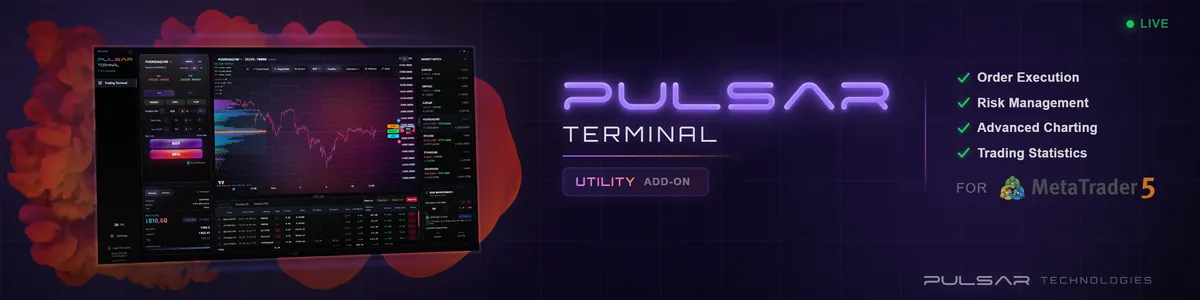
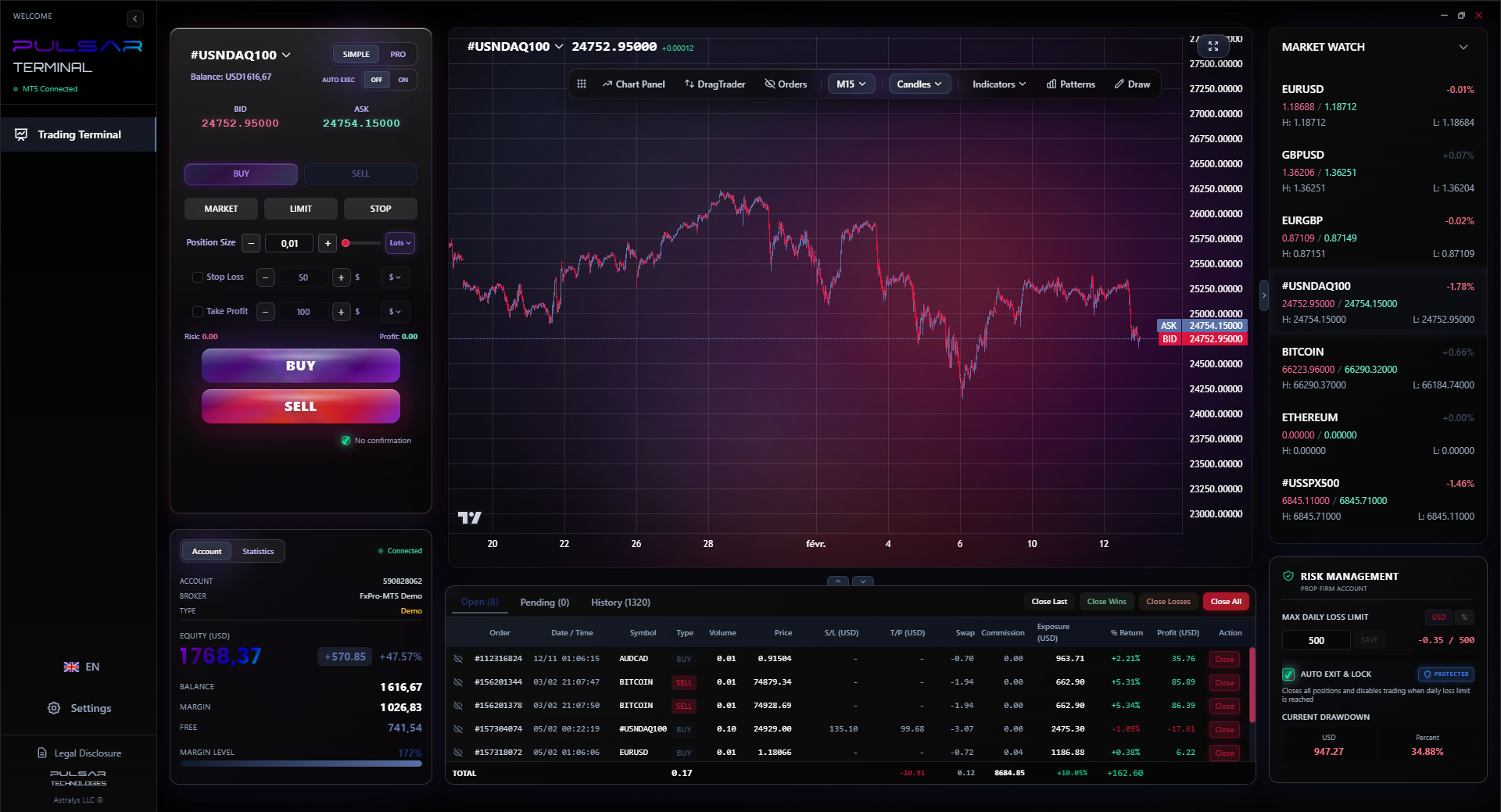
Managing complex orders and protecting profits on the native MT5 iOS app is clunky, but tools like Pulsar Terminal bring desktop-level automation for trailing stops, breakeven, and prop firm rules directly to your mobile workflow.
Pulsar Terminal
Lo strumento MT5 tutto-in-uno: ordini drag-and-drop, multi-TP/SL, trailing stop, grid trading, Volume Profile e protezione prop firm. Usato da oltre 1.000 trader ogni giorno.
FAQ
Q1Can I use Expert Advisors (EAs) on the MT5 iOS app?
No, you cannot. The iOS app is a client terminal only. It can display charts and execute manual trades, but it does not support running automated trading algorithms (EAs). Your EAs must run on the MT5 desktop platform or a dedicated VPS server.
Q2Is my money safe trading on my iPhone? What about security?
Your funds are held with your broker, not in the app. The app is just a window. Security-wise, use a strong, unique password and enable two-factor authentication (2FA) on your trading account if your broker offers it. Never trade on public Wi-Fi networks. Use a cellular connection or a trusted private Wi-Fi.
Q3Why do my charts look different on my phone vs. my desktop MT5?
This is usually due to different data feeds or a setting mismatch. First, check that you're on the same account/server. Then, ensure the chart settings (period, symbol, applied template) are identical. Sometimes, mobile charts have fewer historical bars loaded, which can change indicator values slightly.
Q4I got a 'margin call' warning on my phone. What should I do immediately?
Remain calm. A margin call is a warning, not an automatic liquidation (yet). Open your trade terminal, identify your biggest losing position or the one with the highest margin use, and close it partially or fully to free up margin. Do not open new trades. The goal is to reduce your used margin quickly.
Q5Can I deposit or withdraw funds through the MT5 iOS app?
Generally, no. The MT5 app itself is not a payment processor. You must log into your broker's client portal (website or their own app) to manage funds. Some brokers have integrated funding links within their version of the MT5 app, but this is broker-specific, not an MT5 feature.
Q6The app keeps disconnecting. Is it my phone or my broker?
It's likely your internet connection. MT5 requires a stable, persistent connection. Switch from Wi-Fi to cellular (or vice versa) to test. If disconnections happen on all networks, it could be your broker's server. Contact their support. As a last resort, delete and reinstall the app to clear any corrupted cache.
Q7How accurate are the pending order executions on mobile?
Technically, they are as accurate as on desktop, as the order resides on the broker's server. However, if the price gaps past your pending order level (common during news), it may execute at a worse price (slippage). The mobile app doesn't cause this; market conditions do. Always be aware of the economic calendar.
Lezione del Prof. Winston
Punti chiave:
- ✓Enable One-Click Trading to avoid missed entries.
- ✓Always tap 'Set SL/TP' for pending orders.
- ✓Use chart templates, don't build from scratch.
- ✓Broker server stability is 10x more critical on mobile.
- ✓Mobile is for monitoring, not for new analysis.
Quanto è stato utile questo articolo?
Clicca su una stella
Analisi Trading Settimanali
Analisi e strategie settimanali gratuite. Nessuno spam.
Sull'autore
James Mitchell
Analista Trading Senior
Con base a New York e oltre 9 anni di esperienza nel trading. Si occupa delle principali coppie USD, sfide delle prop firm e del contesto normativo statunitense.
Commenti
Avviso di rischio
Il trading di strumenti finanziari comporta rischi significativi e potrebbe non essere adatto a tutti gli investitori. Le performance passate non garantiscono risultati futuri. Questo contenuto è fornito solo a scopo educativo e non deve essere considerato un consiglio di investimento. Conduci sempre le tue ricerche prima di fare trading.
Potrebbe interessarti anche

Cara Trading Forex Sukses: 7 Prinsip dari Trader Profesional
Cara trading forex sukses dengan 7 prinsip trader pro: manajemen modal, disiplin, journal trading, backtest. Data nyata, bukan janji profit palsu.
Jam Trading Forex Terbaik untuk Trader Indonesia: Panduan Lengkap dengan Tabel Waktu
Panduan jam trading forex untuk trader Indonesia. Tabel 4 sesi dunia, jam emas 20:00-00:00, sesi mana yang harus dihindari. Data akurat + tips dari trader berpengalaman.
Top 5 Sàn Forex Uy Tín Nhất 2026: Review Jujur dari Trader Indonesia
Top 5 sàn forex uy tín 2026 untuk trader Indonesia. Review jujur: spread, deposit, withdraw, dukungan lokal. Exness, XM, IC Markets & lebih.
Scarica Pulsar Terminal
Tutti questi calcolatori sono integrati in Pulsar Terminal con dati in tempo reale dal tuo conto MT5.
Scarica Pulsar Terminal